Navigate folders without leaving Everything 1.5a

Discussion related to "Everything" 1.5.
Post Reply
extratype
Posts: 14
Joined: Thu May 18, 2017 12:25 pm

Navigate folders without leaving Everything 1.5a

Post by extratype »

Opening a folder opens Explorer window by default. Why don't we open a folder in Everything? Let me push this idea further...

Settings:

Code: Select all

allow_multiple_windows=1
operator_precedence=1
show_window_key=703
open_folder_command2=$exec("%ProgramFiles%\Everything 1.5a\Everything64.exe" -nonewwindow -search "#num:quot:%1\#num:quot: ")
open_path_command2=$exec("%ProgramFiles%\Everything 1.5a\Everything64.exe" -filter Parent -search "#num:quot:#num:pathpart:<%1>\#num:quot: " -select "%1")
explore_path_command2=$openpath("%1")
home_filter=1
hotkey_explorer_path_search=1
jump_to_forward_slash_action=3
custom_verb01=explore
custom_open_command01=$exec("%ProgramFiles%\Everything 1.5a\Everything64.exe" -filter Parent -search "#num:quot:%1\#num:quot: ")
custom_open_command02=$exec("%ProgramFiles%\Everything 1.5a\Everything64.exe" -nonewwindow -newtab -filter Parent -search "#num:quot:%1\#num:quot: ")
custom_open_command03=$exec("%ProgramFiles%\Everything 1.5a\Everything64.exe" -nonewwindow -search "#num:quot:#num:pathpart:<%1>\#num:quot: " -select "%1")
custom_open_command04=$exec("%ProgramFiles%\Everything 1.5a\Everything64.exe" -nonewwindow -newtab -filter Parent -search "#num:quot:#num:pathpart:<%1>\#num:quot: " -select "%1")
custom_open_command05=$exec("%ProgramFiles%\Everything 1.5a\Everything64.exe" -nonewwindow -search "#num:quot:#num:pathpart:<#num:pathpart:<%1>>\#num:quot: " -select "$parent(%1)")
file_open_keys=8205
file_explore_path_keys=9663
file_open_path_keys=9407
file_run_as_keys=
file_custom_verb_1_keys=9485
file_custom_open_1_keys=9229
file_custom_open_2_keys=8461
file_custom_open_3_keys=8383
file_custom_open_4_keys=8639
file_custom_open_5_keys=8742
search_edit_show_all_search_history_keys=4648
folders_up_one_dir_keys=
Add a filter:
  • Name: Parent
  • Search: parent:#param:
  • Keyboard shortcut: Alt+\
Additional settings that may help:

Code: Select all

show_focus_on_search=1
path_hit_text_only=0
allow_path_ldrop=1
path_ellipsis=1
secondary_sort_folders_first=0
folders_first=1
file_close_tab_keys=343,27,371
  • allow_path_ldrop=1 setting enables dropping to the Path column.
  • Press Esc to close the current tab/window.
Add a macro: enter /define p=path: in the search edit.

Dark mode colors as in Explorer:

Code: Select all

dark_default_normal_background_color=#191919
dark_search_normal_background_color=#191919
dark_header_normal_background_color=#191919
dark_highlighted_background_color=#5e5e11
dark_highlighted_bold=0
dark_current_sort_background_color=#242424
dark_mouseover_current_sort_background_color=#191919
Usages:
  • Opening a folder
    • Press Enter to open the folder in this window.
    • Press Shift+Enter (File | Custom Open 1) to open the folder in new window.
    • Press Ctrl+Enter (File | Custom Open 2) to open the folder in new tab.
    • Press Ctrl+Shift+Enter (File | Custom Verb 1) to open the folder with Explorer.
  • Opening a file path
    • Press / (File | Custom Open 3) to open the path in this window.
    • Press Shift+/ to open the path in new window.
    • Press Ctrl+/ (File | Custom Open 4) to open the path in new tab.
    • Press Ctrl+Shift+/ (File | Explore Path) to open the path with Explorer.
  • Up one dir
    • Press Alt+Up (File | Custom Open 5) to open the parent folder in this window.
    • Press Alt+Left instead if the current folder is empty.
  • Press Alt+\ (Search | Parent filter) to toggle the result list: folder view ↔ all descendants.
  • Press Alt+/ (Show window hotkey) while an Explorer window is activated, and then Alt+\ to toggle the result list.
Managing files and folders:
  • Pasting to the selected folder: paste inside that folder.
  • Pasting to the selected file: paste in its parent folder.
  • I suggest switch to Explorer to create a folder or file. FYI: there's "new folder with selection" context menu in TeraCopy.
To open explorer with mouse you need to add context menu items.
Following threads may be useful too: Custom Open Commands, Everything Context Menu Commands.
troubled
Posts: 28
Joined: Sun May 15, 2022 2:17 am

Re: Navigate folders without leaving Everything 1.5a

Post by troubled »

Hi!

I saved all these into a .ini file and clicked Import Settings. However, everything is still default and none of the keyboard shortcuts work. any idea why?
brandySnake
Posts: 37
Joined: Fri Sep 24, 2021 3:00 pm

Re: Navigate folders without leaving Everything 1.5a

Post by brandySnake »

There's already a corresponding command, "Explore in Everything." Just assign your preferred key.

For reference, if you set the value of the mbutton_action preference to "Explore in Everything," you'll be able to open folders with a middle-click. Furthermore, you can also open folders in a new tab by holding down the Ctrl key and middle-clicking.
troubled
Posts: 28
Joined: Sun May 15, 2022 2:17 am

Re: Navigate folders without leaving Everything 1.5a

Post by troubled »

brandySnake wrote: Thu Nov 13, 2025 7:12 pm There's already a corresponding command, "Explore in Everything." Just assign your preferred key.

For reference, if you set the value of the mbutton_action preference to "Explore in Everything," you'll be able to open folders with a middle-click. Furthermore, you can also open folders in a new tab by holding down the Ctrl key and middle-clicking.
When I do that, it pops up the folder sidebar + shows the FILES in the main window, without showing the subfolders. How do I make it show everything (including subfolders) in the main folder?

Also, my context menu doesn't have "explore in everything" in the main file window, only when right clicking in the folder sidebar. how do I make it appear at both ends?
void
Developer
Posts: 19870
Joined: Fri Oct 16, 2009 11:31 pm

Re: Navigate folders without leaving Everything 1.5a

Post by void »

I saved all these into a .ini file and clicked Import Settings. However, everything is still default and none of the keyboard shortcuts work. any idea why?
Please make sure there's an
[Everything]
section at the top of your ini file.


How do I make it show everything (including subfolders) in the main folder?
Check the Include Subfolders checkbox at the bottom of the folders sidebar.


Also, my context menu doesn't have "explore in everything" in the main file window, only when right clicking in the folder sidebar. how do I make it appear at both ends?
To show the Explore in Everything context menu item:
  • In Everything 1.5, from the Tools menu, click Options.
  • Click the Context menu tab on the left.
  • Select: Explore in Everything
  • Check Show this item
  • Click OK.
troubled
Posts: 28
Joined: Sun May 15, 2022 2:17 am

Re: Navigate folders without leaving Everything 1.5a

Post by troubled »

got it!

one last question - after ticking "show subfolders", it shows all LEVELS of subfolders instead of just 1 level (like win explorer behavior). how do I adjust that?

lastly, in settings, how do I include a variable drive letter as my Everything portable installation is on dropbox - it can either be C, D or E:\dropbox?
void
Developer
Posts: 19870
Joined: Fri Oct 16, 2009 11:31 pm

Re: Navigate folders without leaving Everything 1.5a

Post by void »

one last question - after ticking "show subfolders", it shows all LEVELS of subfolders instead of just 1 level (like win explorer behavior). how do I adjust that?
Uncheck "Subfolders" at the bottom of the folders sidebar.
Only files/folders in the selected folder are shown, like in Windows Explorer.


lastly, in settings, how do I include a variable drive letter as my Everything portable installation is on dropbox - it can either be C, D or E:\dropbox?
Create an Everything.bat file next to your Everything.exe

Everything.bat:

Code: Select all

@echo off
set currentDrive=%CD:~0,2%
START "" Everything.exe -volumes %currentDrive%
Launch Everything.bat instead of Everything.exe
troubled
Posts: 28
Joined: Sun May 15, 2022 2:17 am

Re: Navigate folders without leaving Everything 1.5a

Post by troubled »

if I uncheck subfolders, zero subfolders are shown (instead of level 1).

for the settings, I was referring to the commands here, For example:

open_folder_command2=$exec("%ProgramFiles%\Everything 1.5a\Everything64.exe" -nonewwindow -search "#num:quot:%1\#num:quot: ")
open_path_command2=$exec("%ProgramFiles%\Everything 1.5a\Everything64.exe" -filter Parent -search "#num:quot:#num:pathpart:<%1>\#num:quot: " -select "%1")
void
Developer
Posts: 19870
Joined: Fri Oct 16, 2009 11:31 pm

Re: Navigate folders without leaving Everything 1.5a

Post by void »

if I uncheck subfolders, zero subfolders are shown (instead of level 1)
I am not sure what you mean.
If you select C:\Windows in the folder sidebar, uncheck subfolders at the bottom of the folder sidebar, you will see files and folders in C:\Windows
Like in Windows Explorer.

Do you want to see one extra level of subfolders? (ie: C:\windows\*\*)
If so, clear your folder sidebar selection and search for:
c:\windows\* | c:\windows\*\*


for the settings, I was referring to the commands here, For example:

open_folder_command2=$exec("%ProgramFiles%\Everything 1.5a\Everything64.exe" -nonewwindow -search "#num:quot:%1\#num:quot: ")
open_path_command2=$exec("%ProgramFiles%\Everything 1.5a\Everything64.exe" -filter Parent -search "#num:quot:#num:pathpart:<%1>\#num:quot: " -select "%1")
To get the drive letter from the Everything.exe, include the following in your command:

<root-name:exe-location:>


For example:

Code: Select all

open_folder_command2=$exec("<root-name:exe-location:>\Everything 1.5a\Everything64.exe" -nonewwindow -search "#num:quot:%1\#num:quot: ")
<root-name:>
<exe-location:>
troubled
Posts: 28
Joined: Sun May 15, 2022 2:17 am

Re: Navigate folders without leaving Everything 1.5a

Post by troubled »

Hi there,

you're clicking from the folder sidebar, hence it works. I'm clicking the folder from the main window, so no subfolders are shown. Hope this clarifies.
extratype
Posts: 14
Joined: Thu May 18, 2017 12:25 pm

Re: Navigate folders without leaving Everything 1.5a

Post by extratype »

Hi! These settings are outdated. Here are my settings working for Everything 1.5.0.1399a...

Modified settings:

Code: Select all

open_folder_command2=$exec("%ProgramFiles%\Everything 1.5a\Everything.exe" -nonewwindow -search """"%1\""" ")
open_path_command2=$exec("%ProgramFiles%\Everything 1.5a\Everything.exe" -filter Parent -search """"#num:pathpart:<%1>\""" " -select "%1")
custom_open_command01=$exec("%ProgramFiles%\Everything 1.5a\Everything.exe" -filter Parent -search """"%1\""" ")
custom_open_command02=$exec("%ProgramFiles%\Everything 1.5a\Everything.exe" -nonewwindow -newtab -filter Parent -search """"%1\""" ")
custom_open_command03=$exec("%ProgramFiles%\Everything 1.5a\Everything.exe" -nonewwindow -search """"#num:pathpart:<%1>\""" " -select "%1")
custom_open_command04=$exec("%ProgramFiles%\Everything 1.5a\Everything.exe" -nonewwindow -newtab -filter Parent -search """"#num:pathpart:<%1>\""" " -select "%1")
custom_open_command05=$exec("%ProgramFiles%\Everything 1.5a\Everything.exe" -nonewwindow -search """"#num:pathpart:<#num:pathpart:<%1>>\""" " -select "$parent(%1)")
Added settings:

Code: Select all

match_folders_with_single_path_separator=0
show_detailed_listview_tooltips=2
history_restore_recently_closed_window_keys=
folders_new_folder_keys=1358
Removed settings:

Code: Select all

path_hit_text_only=0
Hope this helps.

By the way I am maintaining my settings here: https://extratype.notion.site/Everythin ... e48a98efb5
Although it is written in Korean, you can find settings under the section 탐색기처럼 사용하기 (In English: using as Explorer).
There are INI files in the next section, but they also include other settings in sections above 탐색기처럼 사용하기.
troubled
Posts: 28
Joined: Sun May 15, 2022 2:17 am

Re: Navigate folders without leaving Everything 1.5a

Post by troubled »

Thank you so much!

How do I assign the backspace key to simulate "up 1 folder" or previous folder I browsed?
void
Developer
Posts: 19870
Joined: Fri Oct 16, 2009 11:31 pm

Re: Navigate folders without leaving Everything 1.5a

Post by void »

Everything doesn't have a way to go up a directory with a path in the search box.

I will consider a feature to do this.
extratype
Posts: 14
Joined: Thu May 18, 2017 12:25 pm

Re: Navigate folders without leaving Everything 1.5a

Post by extratype »

troubled wrote: Mon Nov 24, 2025 5:29 am How do I assign the backspace key to simulate "up 1 folder" or previous folder I browsed?
You need to assign two shortcut keys, one for "up 1 folder" and another for "previous folder".

In my settings you can assign backspace for "up 1 folder" at Tools menu > Options > "Keyboard" under "General" > "File | Custom Open 5" > Edit. Unfortunately you can't trigger this command if the 'current' folder is empty so you just go back instead. Look for "History | Back" command to assign another shortcut key.
troubled
Posts: 28
Joined: Sun May 15, 2022 2:17 am

Re: Navigate folders without leaving Everything 1.5a

Post by troubled »

extratype wrote: Sun Nov 16, 2025 3:32 pm Hi! These settings are outdated. Here are my settings working for Everything 1.5.0.1399a...

Modified settings:

Code: Select all

open_folder_command2=$exec("%ProgramFiles%\Everything 1.5a\Everything.exe" -nonewwindow -search """"%1\""" ")
open_path_command2=$exec("%ProgramFiles%\Everything 1.5a\Everything.exe" -filter Parent -search """"#num:pathpart:<%1>\""" " -select "%1")
custom_open_command01=$exec("%ProgramFiles%\Everything 1.5a\Everything.exe" -filter Parent -search """"%1\""" ")
custom_open_command02=$exec("%ProgramFiles%\Everything 1.5a\Everything.exe" -nonewwindow -newtab -filter Parent -search """"%1\""" ")
custom_open_command03=$exec("%ProgramFiles%\Everything 1.5a\Everything.exe" -nonewwindow -search """"#num:pathpart:<%1>\""" " -select "%1")
custom_open_command04=$exec("%ProgramFiles%\Everything 1.5a\Everything.exe" -nonewwindow -newtab -filter Parent -search """"#num:pathpart:<%1>\""" " -select "%1")
custom_open_command05=$exec("%ProgramFiles%\Everything 1.5a\Everything.exe" -nonewwindow -search """"#num:pathpart:<#num:pathpart:<%1>>\""" " -select "$parent(%1)")
Added settings:

Code: Select all

match_folders_with_single_path_separator=0
show_detailed_listview_tooltips=2
history_restore_recently_closed_window_keys=
folders_new_folder_keys=1358
Removed settings:

Code: Select all

path_hit_text_only=0
Hope this helps.

By the way I am maintaining my settings here: https://extratype.notion.site/Everythin ... e48a98efb5
Although it is written in Korean, you can find settings under the section 탐색기처럼 사용하기 (In English: using as Explorer).
There are INI files in the next section, but they also include other settings in sections above 탐색기처럼 사용하기.
Hi there,

I decided that I want to retain double clicking a folder as opening in explorer, while middle clicking leads to searching within the folder. how can I do that? I already hit Reset settings, but it is still searching within the folder when I double click the folder.
void
Developer
Posts: 19870
Joined: Fri Oct 16, 2009 11:31 pm

Re: Navigate folders without leaving Everything 1.5a

Post by void »

Tools -> Options -> Context Menu -> Open (Folders) -> Command =
$exec("%1")


Tools -> Options -> Advanced -> mbutton_action = Explore in Everything.
troubled
Posts: 28
Joined: Sun May 15, 2022 2:17 am

Re: Navigate folders without leaving Everything 1.5a

Post by troubled »

thanks!
troubled
Posts: 28
Joined: Sun May 15, 2022 2:17 am

Re: Navigate folders without leaving Everything 1.5a

Post by troubled »

void wrote: Mon Dec 01, 2025 9:40 pm Tools -> Options -> Context Menu -> Open (Folders) -> Command =
$exec("%1")


Tools -> Options -> Advanced -> mbutton_action = Explore in Everything.
Hi there,

sorry again - how do I configure mbutton to Search in Everything instead?

and I noticed the search behavior is quite different now. when I used this code:
path:*\*pre-script*\* type:folder

it used to show me folders with the word pre-script.
now it shows me ONLY subfolders instead. how do I revert to original behavior? Thank you.
void
Developer
Posts: 19870
Joined: Fri Oct 16, 2009 11:31 pm

Re: Navigate folders without leaving Everything 1.5a

Post by void »

sorry again - how do I configure mbutton to Search in Everything instead?
Copy and paste the following into your Everything search box:
/mbutton_action=42224

Press ENTER in your Everything search box.


and I noticed the search behavior is quite different now. when I used this code:
path:*\*pre-script*\* type:folder
* no longer matches \
Please use ** instead.

*pre-script*\** folder:


* wildcard change
troubled
Posts: 28
Joined: Sun May 15, 2022 2:17 am

Re: Navigate folders without leaving Everything 1.5a

Post by troubled »

for the folder search, it used to prioritize all folders with the specific keyword I want, regardless of whether I sort by date modified or not. now it's not that way as per screenshot, how do I fix this?
image.png
image.png (94.55 KiB) Viewed 9722 times
void
Developer
Posts: 19870
Joined: Fri Oct 16, 2009 11:31 pm

Re: Navigate folders without leaving Everything 1.5a

Post by void »

Everything 1.5 doesn't have an option to prioritize folders with the specific keyword.
troubled
Posts: 28
Joined: Sun May 15, 2022 2:17 am

Re: Navigate folders without leaving Everything 1.5a

Post by troubled »

void wrote: Wed Dec 10, 2025 9:26 pm
sorry again - how do I configure mbutton to Search in Everything instead?
Copy and paste the following into your Everything search box:
/mbutton_action=42224

Press ENTER in your Everything search box.


and I noticed the search behavior is quite different now. when I used this code:
path:*\*pre-script*\* type:folder
* no longer matches \
Please use ** instead.

*pre-script*\** folder:


* wildcard change
Hi there,

I have a related question. With this example below, is it possible to assign Ctrl+Click to open the associated file's FOLDER in Win Explorer? How do I do it? Thanks!


Image
void
Developer
Posts: 19870
Joined: Fri Oct 16, 2009 11:31 pm

Re: Navigate folders without leaving Everything 1.5a

Post by void »

Not possible.

Ctrl is reserved for toggle selection.
Ctrl + ENTER will open the path in Windows Explorer.
troubled
Posts: 28
Joined: Sun May 15, 2022 2:17 am

Re: Navigate folders without leaving Everything 1.5a

Post by troubled »

When I hit ctrl+enter, it searches the path in Everything instead.

if I assign any keyboard shortcut, say Alt+1, is it possible? Thank you.
void
Developer
Posts: 19870
Joined: Fri Oct 16, 2009 11:31 pm

Re: Navigate folders without leaving Everything 1.5a

Post by void »

The shortcut can be changed under Tools -> Options -> Keyboard -> File | Open Path

However, this will just execute your Tools -> Options -> Context Menu -> Open Path -> Command.

Have you changed your Open Path Command?
troubled
Posts: 28
Joined: Sun May 15, 2022 2:17 am

Re: Navigate folders without leaving Everything 1.5a

Post by troubled »

I tried changing it to Alt+1, but it's still opening the path in Everything instead:
image.png
image.png (3.99 KiB) Viewed 5653 times
void
Developer
Posts: 19870
Joined: Fri Oct 16, 2009 11:31 pm

Re: Navigate folders without leaving Everything 1.5a

Post by void »

You'll need to create a custom open command to open in Windows Explorer: (if you have changed your Open Path command)
  • In Everything 1.5, from the Tools menu, click Options.
  • Click the Advanced tab on the left.
  • To the right of Show settings containing, search for:
    custom open
  • Select: custom_open_commands
  • Set the value to:

    Code: Select all

    [{"name":"Open Path in Windows Explorer","description":"","include_folders":true,"include_files":true,"filter":"","command":"$openpath(\"%1\")"}]
    
  • Click OK.


Create a bookmark to execute the custom open command and bind a keyboard shortcut:
  • In Everything 1.5, from the Bookmarks menu, click Add to Bookmarks.
  • Change the Name to:
    Open Path in Windows Explorer
  • Change the Search to:

    Code: Select all

    /custom-open-command "Open Path in Windows Explorer"
    
  • Change the Keyboard Shortcut to:
    Alt + 1
  • Click OK.


Custom Open Commands
/custom-open-command
troubled
Posts: 28
Joined: Sun May 15, 2022 2:17 am

Re: Navigate folders without leaving Everything 1.5a

Post by troubled »

now it simply displays this command in the search box instead of opening the path in windows explorer...

Code: Select all

/custom-open-command01 "Open Path in Windows Explorer"
void
Developer
Posts: 19870
Joined: Fri Oct 16, 2009 11:31 pm

Re: Navigate folders without leaving Everything 1.5a

Post by void »

Instead of:

/custom-open-command01 "Open Path in Windows Explorer"


Use:

/custom-open-command "Open Path in Windows Explorer"
tuska
Posts: 1382
Joined: Thu Jul 13, 2017 9:14 am

Re: Navigate folders without leaving Everything 1.5a

Post by tuska »

2void

Hi,

Unfortunately, with these settings, I only get a context menu entry 'Open Path in Windows Explorer' (which does not work as requested):

name: Open Path in Windows Explorer
✅ include_folders
✅ include_files
command:

Code: Select all

[{"name":"Open Path in Windows Explorer","description":"","include_folders":true,"include_files":true,"filter":"","command":"$openpath(\"%1\")"}]
In the following example, I was able to open Windows Explorer and it displayed the desktop instead of the path from my search results list.
The context menu works, but only the desktop is displayed in Windows Explorer.

Code: Select all

[{"name":"Open Path in Windows Explorer","description":"","include_folders":true,"include_files":true,"filter":"","command"="$exec(C:\Windows\explorer.exe /select)" "$openpath(\"%1\")"}]
Please check.
 
Open Path in Windows Explorer - Setting.png
Open Path in Windows Explorer - Setting.png (47.35 KiB) Viewed 5534 times
Open Path in Windows Explorer - Bookmark.png
Open Path in Windows Explorer - Bookmark.png (38.86 KiB) Viewed 5534 times
tuska
Posts: 1382
Joined: Thu Jul 13, 2017 9:14 am

Re: Navigate folders without leaving Everything 1.5a

Post by tuska »

This code works for me   :)   =-> Bookmark and context menu entry “Open Path in Windows Explorer”
Code: Select all

[{"name":"Open Path in Windows Explorer","description":"","include_folders":true,"include_files":true,"filter":"","command":"$openpath("%1")"}]
[{"name":"Open Path in Windows Explorer","description":"","include_folders":true,"include_files":true,"filter":"","command":"$openpath("%1")"}]
----
This code does not work for me:
[{"name":"Open Path in Windows Explorer","description":"","include_folders":true,"include_files":true,"filter":"","command":"$openpath(\"%1\")"}]

2void
Thank you for the CODE!
void
Developer
Posts: 19870
Joined: Fri Oct 16, 2009 11:31 pm

Re: Navigate folders without leaving Everything 1.5a

Post by void »

The following is not valid JSON:
[{"name":"Open Path in Windows Explorer","description":"","include_folders":true,"include_files":true,"filter":"","command":"$openpath("%1")"}]
The double quotes around "%1" are ignored by $openpath()


My original post worked for me:

Code: Select all

[{"name":"Open Path in Windows Explorer","description":"","include_folders":true,"include_files":true,"filter":"","command":"$openpath(\"%1\")"}]


If that doesn't work (maybe SHOpenFolderAndSelectItems is being hooked), please try:

Code: Select all

[{"name":"Open Path in Windows Explorer","description":"","include_folders":true,"include_files":true,"filter":"","command":"$exec(\"%SystemRoot%\\explorer.exe\" /n,/e,/select,\"%1\")"}]
tuska
Posts: 1382
Joined: Thu Jul 13, 2017 9:14 am

Re: Navigate folders without leaving Everything 1.5a

Post by tuska »

void wrote: Wed Dec 31, 2025 1:37 am If that doesn't work (maybe SHOpenFolderAndSelectItems is being hooked), please try:

Code: Select all

[{"name":"Open Path in Windows Explorer","description":"","include_folders":true,"include_files":true,"filter":"","command":"$exec(\"%SystemRoot%\\explorer.exe\" /n,/e,/select,\"%1\")"}]
In this case, I receive the following error message:
"\"C:\WINDOWS\\explorer.exe\"" could not be found.
Ensure that you have entered the name correctly and repeat the process.


German:
"\"C:\WINDOWS\\explorer.exe\"" konnte nicht gefunden werden.
Stellen Sie sicher, dass Sie den Namen richtig eingegeben haben und wiederholen Sie den Vorgang.

If I set the following, namely (Please note the backslashes...)

Code: Select all

[{"name":"Open Path in Windows Explorer","description":"","include_folders":true,"include_files":true,"filter":"","command":"$exec("%SystemRoot%\explorer.exe\" /n,/e,/select,\"%1\")"}]
... I only get the desktop.
void
Developer
Posts: 19870
Joined: Fri Oct 16, 2009 11:31 pm

Re: Navigate folders without leaving Everything 1.5a

Post by void »

If you are using the table editor, please set the following:

name:
Open Path in Windows Explorer

include_folders:
true
(checked)
include_files:
true
(checked)
command:
$exec("%SystemRoot%\explorer.exe" /n,/e,/select,"%1")
tuska
Posts: 1382
Joined: Thu Jul 13, 2017 9:14 am

Re: Navigate folders without leaving Everything 1.5a

Post by tuska »

void wrote: Wed Dec 31, 2025 1:55 am If you are using the table editor, please set the following:

name:
Open Path in Windows Explorer

include_folders:
true
(checked)
include_files:
true
(checked)
command:
$exec("%SystemRoot%\explorer.exe" /n,/e,/select,"%1")
Thanks a lot this works!
 
2025-12-31_Open Path in Windows Explorer.png
2025-12-31_Open Path in Windows Explorer.png (15.75 KiB) Viewed 5499 times
 
I wish you all the best for the New Year!
void
Developer
Posts: 19870
Joined: Fri Oct 16, 2009 11:31 pm

Re: Navigate folders without leaving Everything 1.5a

Post by void »

Happy New Year!
troubled
Posts: 28
Joined: Sun May 15, 2022 2:17 am

Re: Navigate folders without leaving Everything 1.5a

Post by troubled »

void wrote: Wed Dec 31, 2025 1:37 am The following is not valid JSON:
[{"name":"Open Path in Windows Explorer","description":"","include_folders":true,"include_files":true,"filter":"","command":"$openpath("%1")"}]
The double quotes around "%1" are ignored by $openpath()


My original post worked for me:

Code: Select all

[{"name":"Open Path in Windows Explorer","description":"","include_folders":true,"include_files":true,"filter":"","command":"$openpath(\"%1\")"}]


If that doesn't work (maybe SHOpenFolderAndSelectItems is being hooked), please try:

Code: Select all

[{"name":"Open Path in Windows Explorer","description":"","include_folders":true,"include_files":true,"filter":"","command":"$exec(\"%SystemRoot%\\explorer.exe\" /n,/e,/select,\"%1\")"}]
I tried all 3 variations and none worked for me. No context menu appears and nothing happens when I hit the keyboard shortcut.
void
Developer
Posts: 19870
Joined: Fri Oct 16, 2009 11:31 pm

Re: Navigate folders without leaving Everything 1.5a

Post by void »

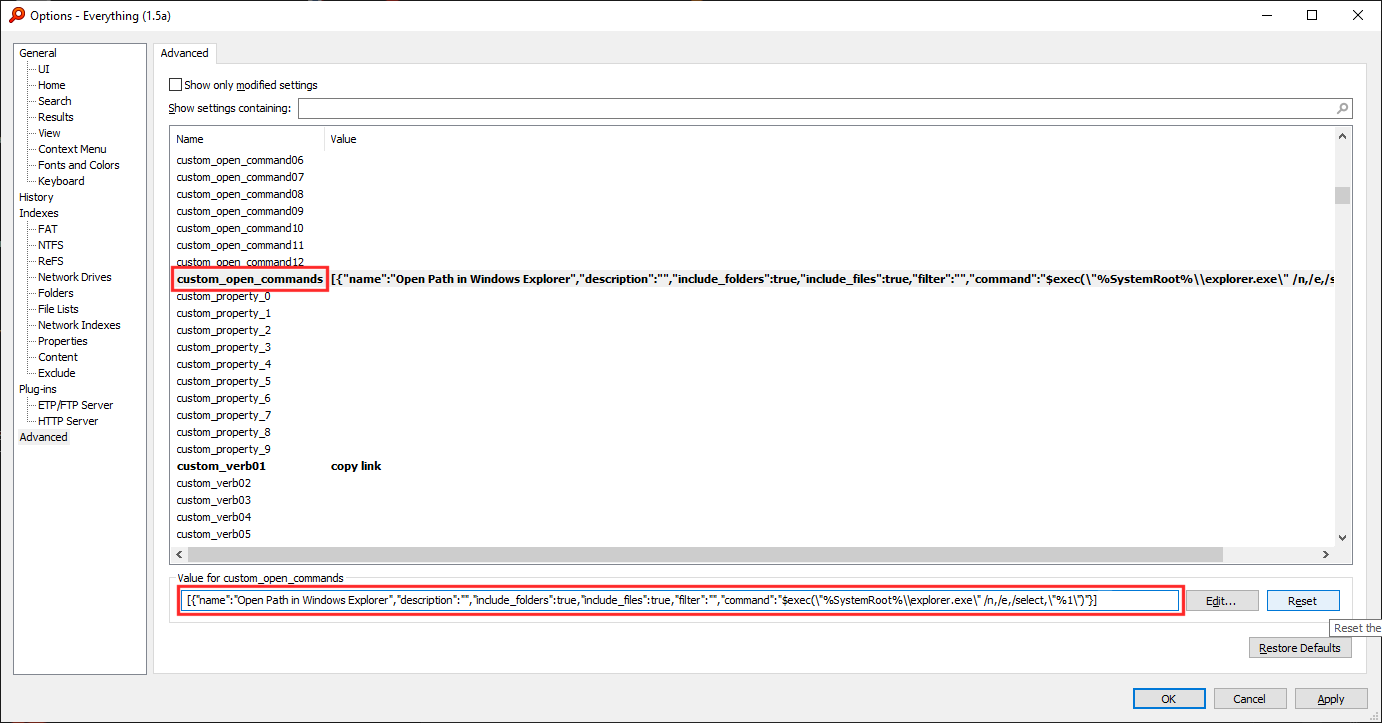
If there's no Open Path in Windows Explorer context menu item, it means custom_open_commands has not been set correctly.

Please make sure you set custom_open_commands as specified:


Code: Select all

[{"name":"Open Path in Windows Explorer","description":"","include_folders":true,"include_files":true,"filter":"","command":"$exec(\"%SystemRoot%\\explorer.exe\" /n,/e,/select,\"%1\")"}]
troubled
Posts: 28
Joined: Sun May 15, 2022 2:17 am

Re: Navigate folders without leaving Everything 1.5a

Post by troubled »

yes it works! Thank you so much for your patience.
Post Reply