The Everything 1.5 beta is now available for testing.
Installing Everything 1.5b will overwrite your existing Everything 1.4 installation.
Any existing Everything 1.5a installation is unaffected by the Everything 1.5b installation.
Installation Recommendations
Portable Version Upgrade Recommendations
Manual Import
Update Plugins
Backup settings and data
Restore settings and data
Manual Everything 1.5a Uninstallation
Run Everything 1.4 and 1.5b
Set Title to Include Version Information
Troubleshooting
Installation Recommendations
Before installing, please backup your settings and data.
To upgrade Everything 1.5a:
- The following only needs to be done once when upgrading from Everything 1.5a.
- In the Everything 1.5b installer, on the last Install Options page, check Copy Everything 1.5a settings and data:
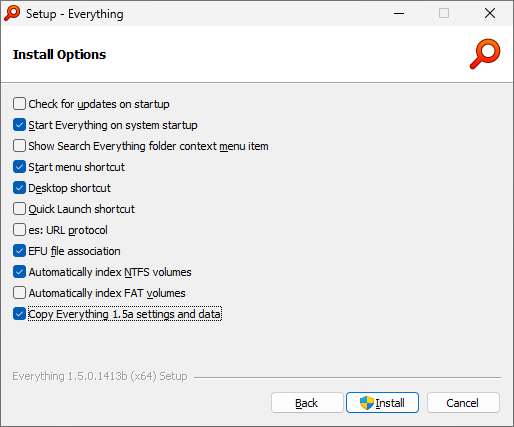
- Install Everything 1.5b.
- Run Everything 1.5b.
- After Everything 1.5b is installed and running, uninstall Everything 1.5a.
To upgrade Everything 1.4:
- Simply install Everything 1.5b.
Portable Version Upgrade Recommendations
Before installing, please backup your portable folder.
To upgrade the Everything 1.5a portable version:
- The following only needs to be done once when upgrading from Everything 1.5a.
- Uninstall Everything 1.5a system changes and exit:
- In Everything 1.5a, from the Tools menu, click Options.
- Click the General tab on the left.
- Uncheck Start Everything on system startup.
- Uncheck Everything Service.
- Uncheck Show Search Everything folder context menu item.
- Uncheck Start menu shortcut.
- Uncheck Desktop shortcut.
- Uncheck Quick Launch shortcut.
- Uncheck es: URL Protocol.
- Uncheck EFU file association.
- Click OK.
- Exit Everything (File -> Exit)
- In your Everything portable location, for each file that ends with :
-1.5a- Remove the suffix from the filename.
-1.5a
For example: RenametoBookmarks-1.5a.csvBookmarks.csv
Delete or move any existing files with the new name.
- Remove the
- Replace your Everything.exe with the Everything.exe from the Everything 1.5b portable zip.
- Launch Everything.exe.
- Accept the prompt to run indexing process as administrator or install the Everything Service.
- In Everything 1.5b, from the Tools menu, click Options.
- Click the General tab on the left.
- Optionally check Start Everything on system startup.
- Optionally check Show Search Everything folder context menu item.
- Optionally check Start menu shortcut.
- Optionally check Desktop shortcut.
- Optionally check Quick Launch shortcut.
- Optionally check es: URL Protocol.
- Optionally check EFU file association.
- Click OK.
Manual Import
Everything 1.5b will use your Everything 1.4 settings and data.
If the Everything 1.4 settings and data does not exist, Everything 1.5b will automatically import your Everything 1.5a settings and data.
To manually import all settings and data:
- Exit Everything (File -> Exit)
- In , copy the following files:
%APPDATA%\Everything- Bookmarks-1.5a.csv => Bookmarks.csv
- Everything-1.5a.ini => Everything.ini
- Omit Results-1.5a.csv => Omit Results.csv
- Run History-1.5a.csv => Run History.csv
- Search History-1.5a.csv => Search History.csv
- Synonyms-1.5a.txt => Synonyms.txt
- Filters-1.5a.csv => Filters.csv
- Macros-1.5a.csv => Macros.csv
- Plugins-1.5a.ini => Plugins.ini
- Session-1.5a.json => Session.json
- In , copy the following files:
%LOCALAPPDATA%\Everything- Everything-1.5a.db => Everything.db
- Launch Everything 1.5b.
For example, if Bookmarks.csv does not exist, Everything 1.5b will automatically copy Bookmarks-1.5a.csv to Bookmarks.csv
To manually import settings:
- In Everything 1.5b, from the Tools menu, click Import and Export Settings.
- Select Import settings.
- Click Next.
- Click Browse....
- Type in the following filename and press ENTER:
%APPDATA%\Everything - Select your Everything-1.5a.ini file and click Open.
- Click Import.
- Check Restart Everything.
- Click Finish.
Everything will restart to apply your old settings.
To manually import search history:
- In Everything 1.5b, from the History menu, click Show All Search History.
- Click Import....
- Select your Search History-1.5a.csv file and click Open.
- Click OK.
To manually import run history:
- In Everything, from the Tools menu, click Run History.
- Click Import....
- Select your Run History-1.5a.csv file and click Open.
- Click OK.
To manually import filters:
- In Everything 1.5b, from the Search menu, click Organize Filters....
- Click Import....
- Select your Filters-1.5a.csv file and click Open.
- Click OK.
To manually import bookmarks:
- In Everything 1.5b, from the Bookmarks menu, click Organize Bookmarks....
- Click Import....
- Select your Bookmarks-1.5a.csv file and click Open.
- Click OK.
Update Plugins
To update plugins:
- Exit Everything 1.5b (File -> Exit).
- Copy your Plugins folder from your Everything 1.5a folder to your Everything 1.5b folder.
- For example: Copy to
C:\Program Files\Everything 1.5a\PluginsC:\Program Files\Everything\Plugins - Copy to
%APPDATA%\Everything\Plugins-1.5a.ini%APPDATA%\Everything\Plugins.ini - For the portable version, copy your to
Plugins-1.5a.iniin the same location as your Everything.exePlugins.ini - Restart Everything.
C:\Program Files\Everything 1.5a\PluginsC:\Program Files\Everything\PluginsBackup settings and data
To backup Everything 1.5a settings and data:
- Exit Everything 1.5a (File -> Exit).
- Copy your Everything installation folder:
C:\Program Files\Everything 1.5a - Copy your Everything settings and data folder:
%APPDATA%\Everything - Copy your Everything database folder:
%LOCALAPPDATA%\Everything - Optionally restart Everything 1.5a.
To backup Everything 1.4 settings and data:
- Exit Everything 1.4 (File -> Exit).
- Copy your Everything installation folder:
C:\Program Files\Everything - Copy your Everything settings and data folder:
%APPDATA%\Everything - Copy your Everything database folder:
%LOCALAPPDATA%\Everything - Optionally restart Everything 1.4.
Restore settings and data
To restore Everything 1.5a settings and data:
- Exit Everything 1.5a (File -> Exit).
- Restore your Everything installation folder:
C:\Program Files\Everything 1.5a - Restore your Everything settings and data folder:
%APPDATA%\Everything - Restore your Everything database folder:
%LOCALAPPDATA%\Everything - Restart Everything 1.5a.
To restore Everything 1.4 settings and data:
- Exit Everything 1.4 (File -> Exit).
- Restore your Everything installation folder:
C:\Program Files\Everything - Restore your Everything settings and data folder:
%APPDATA%\Everything - Restore your Everything database folder:
%LOCALAPPDATA%\Everything - Restart Everything 1.4.
Manual Everything 1.5a Uninstallation
Uninstalling Everything from Add/Remove Programs is recommended.
Any system changes can be uninstalled easily by running the portable Everything 1.5a and unchecking all options under Tools -> Options -> General.
To manually uninstall Everything 1.5a:
- Exit Everything (File -> Exit)
- From the Start menu, search for:
services - Right click Services and click Run as administrator.
- Right click Everything (1.5a) and click Stop.
- Delete the following files from :
%APPDATA%\Everything
(Delete from the same location as your Everything.exe for the portable version)Code: Select all
Bookmarks-1.5a.csv
Bookmarks-1.5a.csv.tmp
Bookmarks-1.5a.backup.csv
Everything-1.5a.ini
Everything-1.5a.ini.tmp
Everything-1.5a.backup.ini
Omit Results-1.5a.csv
Omit Results-1.5a.csv.tmp
Omit Results-1.5a.backup.csv
Run History-1.5a.csv
Run History-1.5a.csv.tmp
Run History-1.5a.backup.csv
Search History-1.5a.csv
Search History-1.5a.csv.tmp
Search History-1.5a.backup.csv
Synonyms-1.5a.txt
Filters-1.5a.csv
Filters-1.5a.csv.tmp
Filters-1.5a.backup.csv
Macros-1.5a.csv
Macros-1.5a.csv.tmp
Macros-1.5a.backup.csv
Plugins-1.5a.ini
Plugins-1.5a.ini.tmp
Plugins-1.5a.backup.ini
Session-1.5a.json
Session-1.5a.json.tmp
Session-1.5a.backup.json
- Delete the following files from :
%LOCALAPPDATA%\Everything
(Delete from the same location as your Everything.exe for the portable version)Code: Select all
Everything-1.5a.db
Everything-1.5a.db.tmp
Everything-1.5a.backup.db
- Delete the following folders:
Code: Select all
C:\Program Files\Everything 1.5a
C:\Program Files (x86)\Everything 1.5a
- Delete the following files:
Code: Select all
%USERPROFILE%\Start Menu\Programs\Everything 1.5a.lnk
%USERPROFILE%\Desktop\Search Everything 1.5a.lnk
%APPDATA%\Microsoft\Windows\Start Menu\Programs\Everything 1.5a.lnk
%APPDATA%\Microsoft\Internet Explorer\Quick Launch\Search Everything 1.5a.lnk
- Delete the following registry keys:
Code: Select all
HKEY_LOCAL_MACHINE\software\voidtools\everything 1.5a
HKEY_LOCAL_MACHINE\Software\Microsoft\Windows\CurrentVersion\Uninstall\Everything 1.5a
HKEY_LOCAL_MACHINE\Software\Wow6432Node\Microsoft\Windows\CurrentVersion\Uninstall\Everything 1.5a
HKEY_LOCAL_MACHINE\SYSTEM\CurrentControlSet\Services\Everything (1.5a)
HKEY_CLASSES_ROOT\Folder\shell\Search Everything 1.5a...
HKEY_CLASSES_ROOT\Directory\Background\shell\Search Everything 1.5a...
HKEY_CLASSES_ROOT\ES
HKEY_CLASSES_ROOT\.efu
HKEY_CLASSES_ROOT\Everything.FileList
HKEY_CURRENT_USER\Software\voidtools\Everything 1.5a
HKEY_CURRENT_USER\Software\Classes\Folder\shell\Search Everything 1.5a...
HKEY_CURRENT_USER\Software\Classes\Directory\Background\shell\Search Everything 1.5a...
HKEY_CURRENT_USER\Software\Classes\ES
HKEY_CURRENT_USER\Software\Classes\.efu
HKEY_CURRENT_USER\Software\Classes\Everything.FileList
HKEY_CURRENT_USER\Software\Microsoft\Windows\CurrentVersion\Uninstall\Everything 1.5a
HKEY_CURRENT_USER\Software\Wow6432Node\Microsoft\Windows\CurrentVersion\Uninstall\Everything 1.5a
- Delete the following registry values from :
HKEY_LOCAL_MACHINE\SOFTWARE\Microsoft\Windows\CurrentVersion\RunCode: Select all
Everything 1.5a
- Delete the following registry values from :
HKEY_LOCAL_MACHINE\SOFTWARE\Wow6432Node\Microsoft\Windows\CurrentVersion\RunCode: Select all
Everything 1.5a
- Delete the following registry values from :
HKEY_CURRENT_USER\SOFTWARE\Microsoft\Windows\CurrentVersion\RunCode: Select all
Everything 1.5a
- Delete the following registry values from :
HKEY_CURRENT_USER\SOFTWARE\Wow6432Node\Microsoft\Windows\CurrentVersion\RunCode: Select all
Everything 1.5a
Run Everything 1.4 and 1.5b
Everything 1.5b will run in the default unnamed instance.
Everything 1.4 will run in the default unnamed instance.
Normally, you cannot run Everything 1.4 and Everything 1.5b at the same time, since they both share the same unnamed instance.
To run Everything 1.4 and Everything 1.5b at the same time:
- Download the portable zip of Everything 1.4 and put it in its own folder, eg: C:\Everything-1.4
- Copy the following files from %APPDATA%\Everything or your portable Everything.exe 1.4 location:
- Bookmarks.csv => Bookmarks-1.4.csv
- Everything.ini => Everything-1.4.ini
- Run History.csv => Run History-1.4.csv
- Search History.csv => Search History-1.4.csv
- Filters-1.5a.csv => Filters-1.4.csv
- Copy the following files from %LOCALAPPDATA%\Everything or your portable Everything.exe 1.4 location:
- Everything.db => Everything-1.4.db
- Run Everything 1.4 in a named instance, for example:
C:\Everything-1.4\Everything.exe -instance 1.4
The Everything Service for 1.4 and 1.5b are not compatible.
Everything 1.4 will create a unique Everything Service for each instance.
Everything 1.5b will share the same Everything Service for all instances.
To run Everything 1.4 in the unnamed instance and Everything 1.5b at the same time:
- Download the portable zip of Everything 1.5b and put it in its own folder, eg: C:\Everything-1.5b
- Create an Everything-1.5b.ini in this location and set it to:
Code: Select all
[Everything] service_name=Everything 1.5b - Run Everything 1.5b in a named instance, for example:
C:\Everything-1.5b\Everything.exe -instance 1.5b
Everything 1.5a will run in a 1.5a instance.
You can run Everything 1.5b and 1.5a at the same time. They do not interfere with each other.
You can run Everything 1.4 and 1.5a at the same time. They do not interfere with each other.
Set Title to Include Version Information
To change the title formatting to include version information:
- In Everything 1.5, from the Tools menu, click Options.
- Click the Advanced tab on the left.
- To the right of Show settings containing, search for:
title - Select: window_title_format
- Set the value to:
$s?{$s - }$a?{$a - }$d?{$d - }$t$i?{ ($i)} $v<if:isadmin:," [Administrator]"><if:isdbreadonly:," [Read-only]">
- Select: taskbar_notification_title_format
- Set the value to:
$t$i?{ ($i)} $v<if:isadmin:," [Administrator]"><if:isdbreadonly:," [Read-only]">
- Select: dialog_title_format
- Set the value to:
$s?{$s - }$t$i?{ ($i)} $v
- Click OK.
Troubleshooting
If Everything is reindexing after upgrading:
- Terminate Everything.exe
- Manually copy your Everything-1.5a.db to Everything.db in your custom Everything database location.
- Restart Everything.exe
If Everything 1.5a was previously pinned to the taskbar, Windows may use the cached 1.5a shortcut for the Everything 1.5b pinned icon, resulting in a blank icon with the wrong target and start location.
To fix the pinned Everything icon in the taskbar:
- Right click the pinned Everything button in the taskbar, right click Everything and click Properties.
- Change the Target to:
"C:\Program Files\Everything\Everything.exe" -is-relaunch-command - Change the Start in to:
"C:\Program Files\Everything" - Click Change Icon.
- Set Look for icons in this file to:
%ProgramFiles%\Everything\Everything.exe - Press ENTER.
- Click OK to select the icon.
- Click OK.
- Restart Windows.
Only one instance can be associated with .efu files and the ES: url protocol.
 you need to update the Everything.exe to (beta) too.
 Start Everything on system startup