Backup, restore or reset your settings:
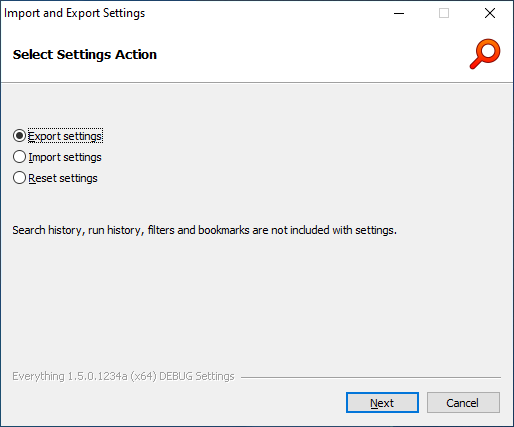
Manage Setting:
Export settings
Import settings
Import settings from Everything 1.4
Reset settings
Edit all settings
Import other settings
Export other settings
Export settings
To export your settings:
- In Everything, from the Tools menu, click Import and Export Settings.
- Select Export settings.
- Click Next.
- Click Browse....
- Select a filename and click Save.
- Click Export.
- Click Finish.
| Only settings are exported. Search history, run history, filters and bookmarks are not included. Exporting all settings and data is in development. |
Import settings
To import your settings:
- In Everything, from the Tools menu, click Import and Export Settings.
- Select Import settings.
- Click Next.
- Click Browse....
- Select an Everything.ini file and click Open.
- Click Import.
- Check Restart Everything.
- Click Finish.
Everything will restart to apply your new settings.
Import settings from Everything 1.4
Your Everything 1.4 settings are stored in: %APPDATA%\Everything
To import your settings from Everything 1.4:
- In Everything 1.5a, from the Tools menu, click Import and Export Settings.
- Select Import settings.
- Click Next.
- Click Browse....
- Type in the following filename and press ENTER:
%APPDATA%\Everything - Select your Everything.ini and click Open.
- Click Import.
- Check Restart Everything.
- Click Finish.
Everything will restart to apply your old settings.
| Only settings are imported. Search history, run history, filters and bookmarks are not included. Importing all settings and data is in development. |
Reset settings
To reset your settings to their default values:
- In Everything, from the Tools menu, click Import and Export Settings.
- Select Reset settings.
- Click Next.
- Click Reset.
- Click Yes to confirm.
- Check Restart Everything.
- Click Finish.
Everything will restart to reset your settings.
Edit all settings
To view and modify all your settings:
- In Everything, from the Tools menu, under the Debug submenu, click Config.
This will load your Everything.ini in Notepad. - Make any desired changes (even when Everything is running)
- Save changes and exit Notepad.
- Accept the prompt to reload your Everything.ini.
Import other settings
To import search history:
- In Everything, from the History menu, click Show All Search History.
- Click Import....
- Select your Search History.csv file and click Open.
- Click OK.
To import run history:
- In Everything, from the Tools menu, click Run History.
- Click Import....
- Select your Run History.csv file and click Open.
- Click OK.
To import filters:
- In Everything, from the Search menu, click Organize Filters....
- Click Import....
- Select your Filters.csv file and click Open.
- Click OK.
To import bookmarks:
- In Everything, from the Bookmarks menu, click Organize Bookmarks....
- Click Import....
- Select your bookmarks.csv file and click Open.
- Click OK.
Export other settings
To export search history:
- In Everything, from the History menu, click Show All Search History.
- Click Export....
- Choose a filename and click Save.
- Click OK.
To export run history:
- In Everything, from the Tools menu, click Run History.
- Click Export....
- Choose a filename and click Save.
- Click OK.
To export filters:
- In Everything, from the Search menu, click Organize Filters....
- Click Export....
- Choose a filename and click Save.
- Click OK.
To export bookmarks:
- In Everything, from the Bookmarks menu, click Organize Bookmarks....
- Click Export....
- Choose a filename and click Save.
- Click OK.