Plugins
The ETP/FTP/HTTP servers are now plug-ins in
Everything 1.5.
Download Plug-ins
Plug-in Installation
Plug-in Setup
Plug-in Directory
Plug-in Settings
Remove a Plugin
Safe mode
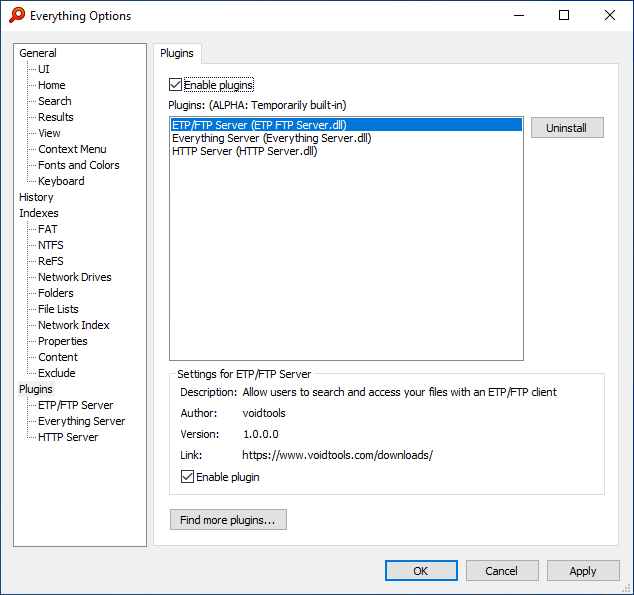
The plug-ins option page:
 Download Plug-ins
Download and run an installer to
add a plugin or download a portable zip to
manually add a plugin.
- HTTP Server - Allow users to search and access your files from a web browser.
- ETP/FTP Server - Allow users to search and access your files from Everything or an FTP client.
- Everything Server - Allow users to access your index from Everything.
HTTP Server
Allow users to search and access your files from a web browser.
ETP/FTP Server
Allow users to search and access your files from Everything or an FTP client.
Everything Server
Allow users to access your index from Everything.
Plug-in Installation
To install a plug-in:
-or-
To manually install a plug-in:
- Download a plug-in zip and extract the plug-in dll to your Desktop.
- Move the extracted plug-in dll to C:\Program Files\Everything\plugins
where C:\Program Files\Everything is your Everything installation folder.
- In Everything, from the File menu, click Exit.
- Restart Everything.
Plugins created by voidtools are automatically enabled.
Third party plugins need to be manually enabled.
To enable a third party plugin:
- In Everything, from the Tools menu, click Options.
- Click the Plug-ins tab on the left.
- Select your plugin and check Enable plugin.
Plug-in Setup
To manage your plug-ins:
- In Everything, from the Tools menu, click Options.
- Click the Plug-ins tab on the left.
Plug-in Directory
Plug-ins are stored in the
Plugins folder in your Everything installation folder.
Plug-in Settings
Everything manages your plug-in settings.
Plugin settings are stored in your
Plugins.ini file in
%APPDATA%\Everything
If
Store settings and data in %APPDATA%\Everything is disabled, the
Plugins.ini is stored in the same location as your Everything.exe.
Remove a Plug-in
To remove a plug-in:
- In Everything, from the Tools menu, click Options.
- Click the Plug-ins tab on the left.
- Select the plugin to remove.
- Click Remove.
- Click Yes to delete the plugin.
Everything will restart to remove the selected plugin.
Safe mode
If a plug-in is preventing Everything from starting you can start Everything without plug-ins by using the -safe-mode command line option:
Everything.exe -safe-mode