Properties
Properties are metadata from your files, such as Length, Author, Tags, Size on Disk, Filename length, Dimensions, Program Version, Regular Expression Match 1, Frame rate, etc...
View properties
Search properties
Sort by properties
Find duplicated properties
Index properties for instant searching and instant sorting
Update indexed properties
Property gathering methods
Setting property values
Windows Property System
Everything Properties
User values
.metadata.efu
property_alternate_data_stream_wchar
property_alternate_data_stream_ansi
property_alternate_data_stream_utf8
Summary Information
View properties
Right click the column header and click
Add column... choose a property to display:
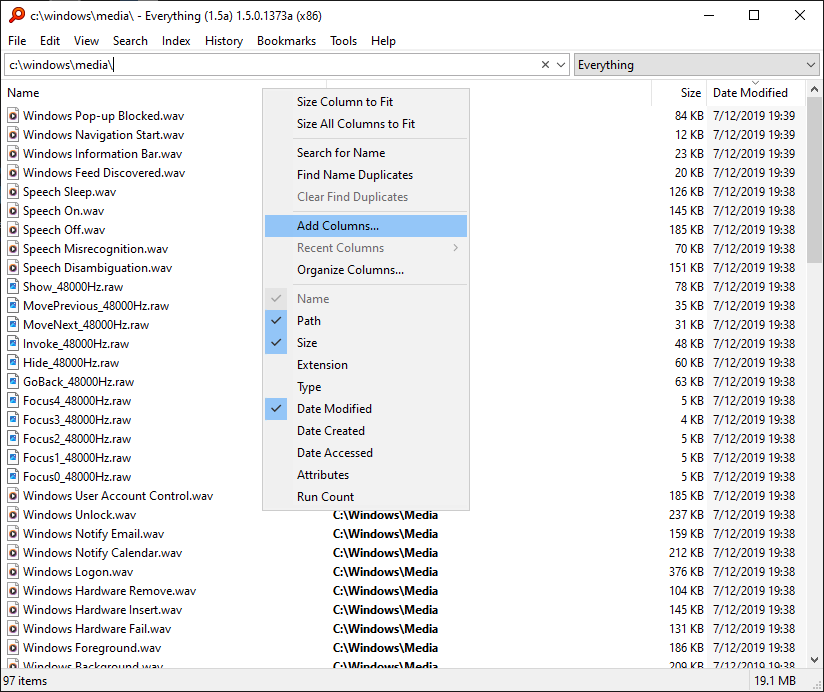
Select a column to show:
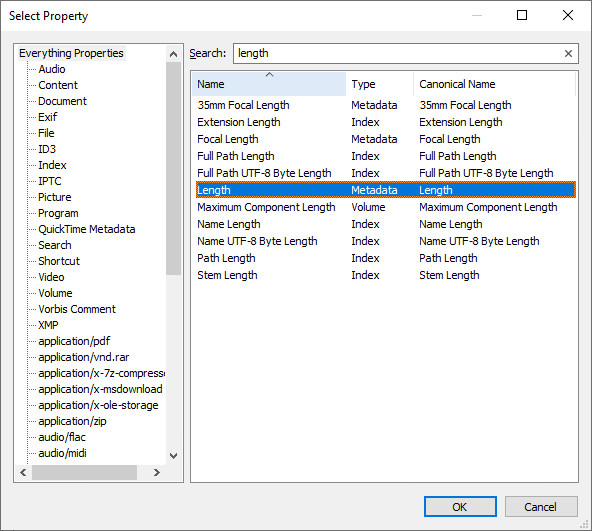
For example, the Length column:
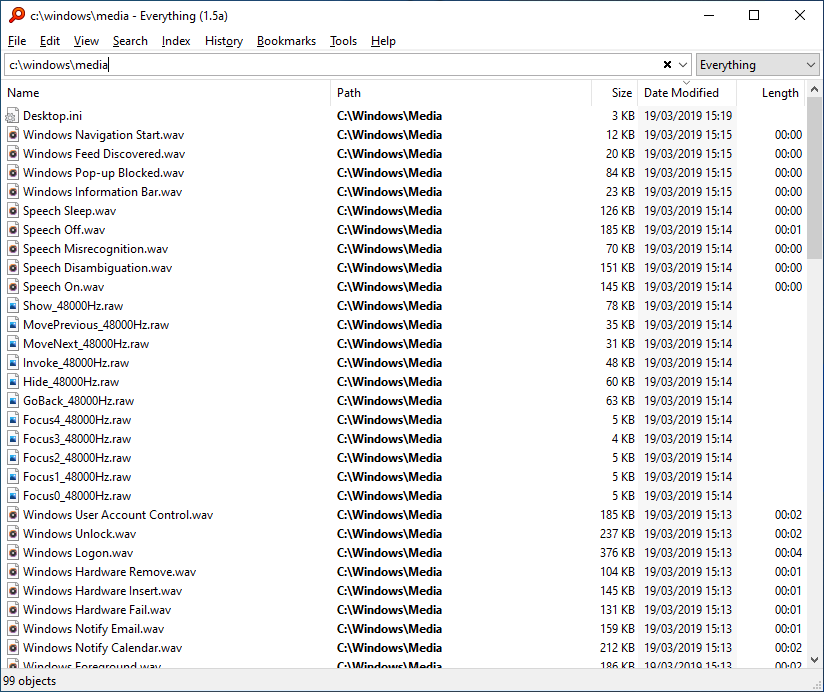
Press
Alt + 2 to auto size the Everything window and all columns.
To add advanced columns:
- Right click the column header and click Add columns....
- Check Show advanced properties.
- Select the desired column(s) and click OK.
Search properties
Right click the column header of the property you wish to search and click Search for
Property:
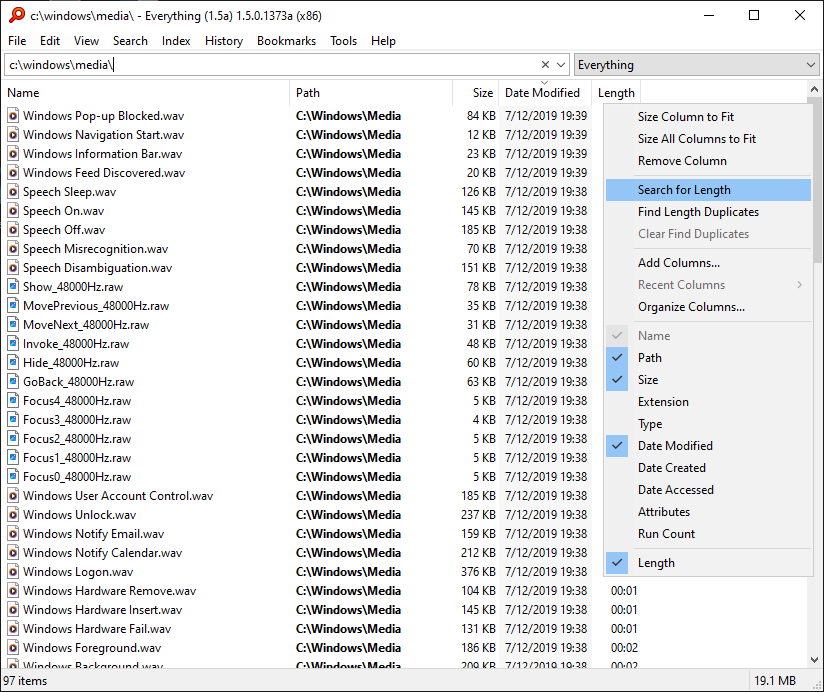
Complete the search, for example find files that have a length of 1 minute:
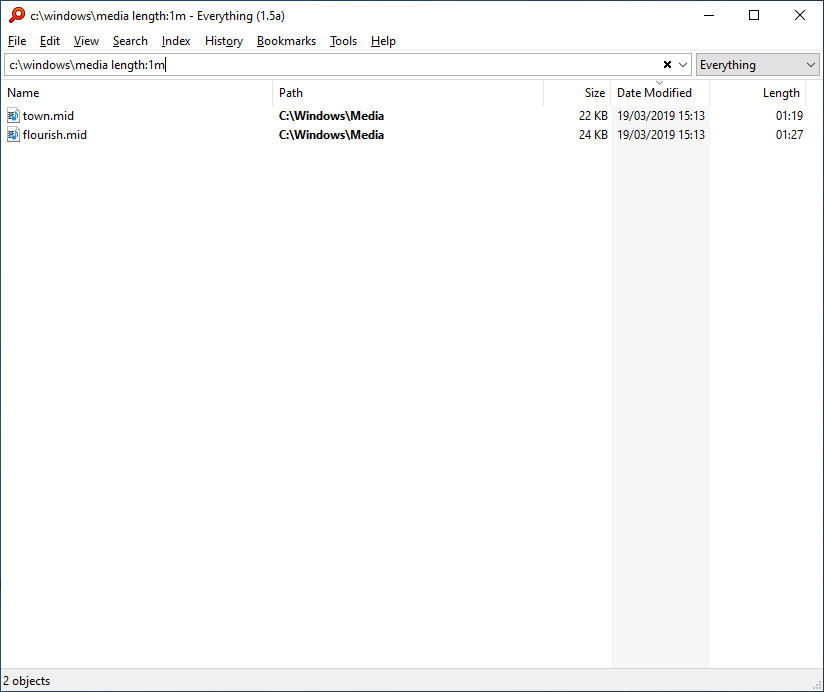
Showing search syntax and examples is in development.
Sort properties
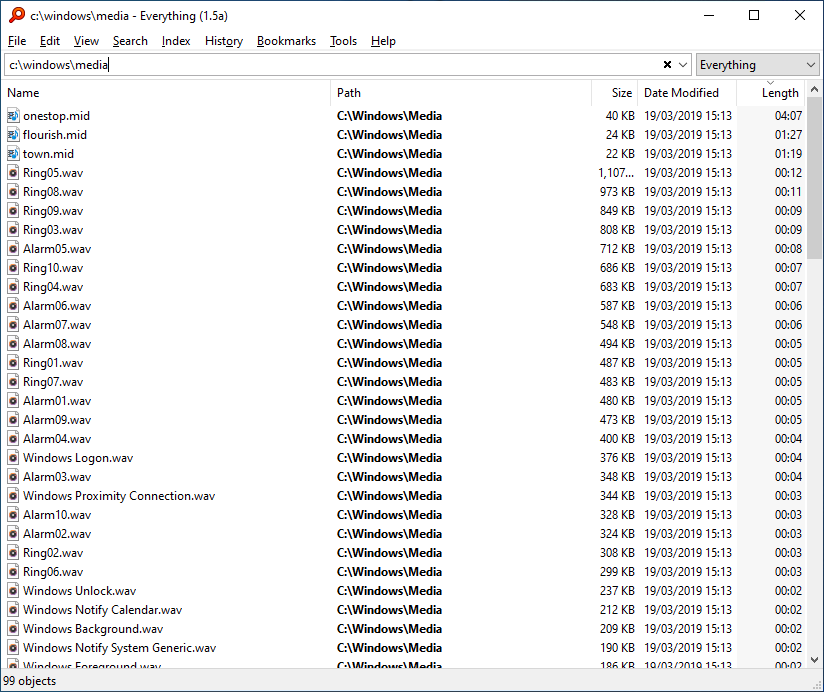
Click the column header to sort by that property.
For example, click the Length column header to sort by Length:
 Find duplicates
Right click the column header of the property you wish to find duplicates and click Find
Property Duplicates:
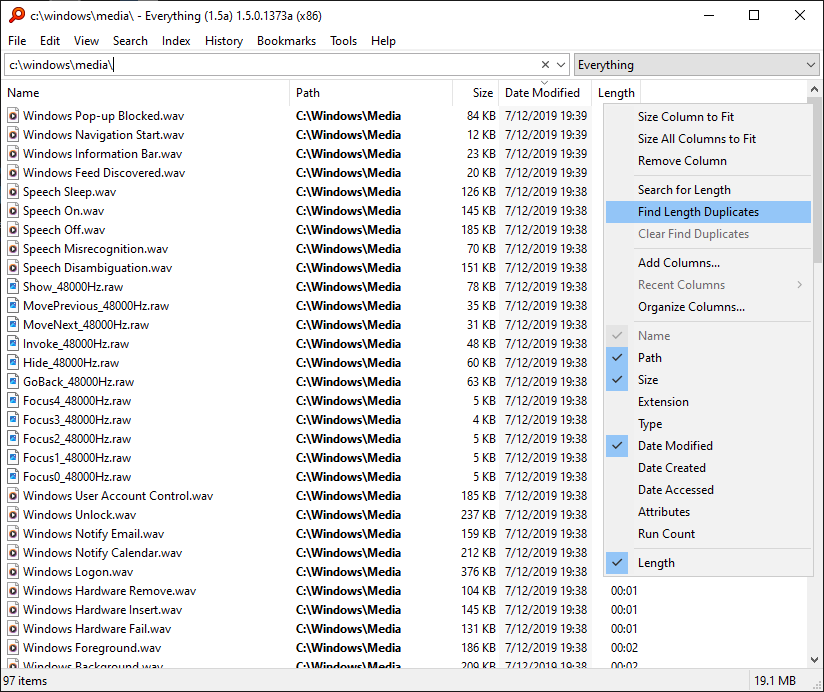
Files that are not duplicated are removed from the result list.
DUPE is shown in the status bar.
Double click DUPE in the status bar or type in a new search to restore all search results.
For more information, please see:
Finding Duplicates
Index Properties
Adding a property to your index will:
- Make searching for this property instant.
- Make sorting by this property instant (when fast sort is enabled).
To add a property to your index:
- In Everything, from the Tools menu, click Options.
- Click the Properties tab on the left.
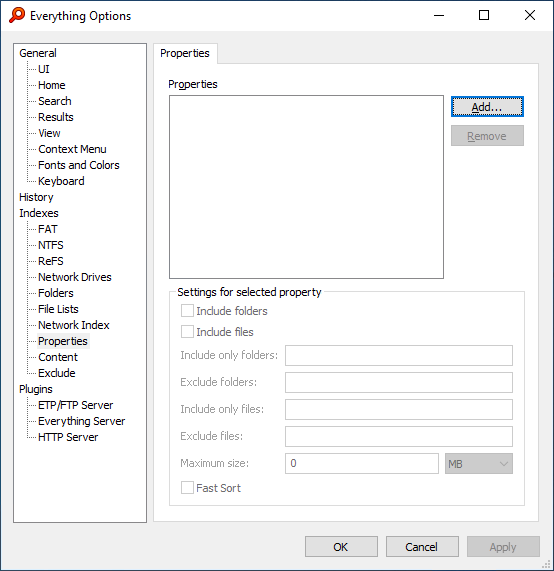
- Click Add....
- Select a property and click OK.
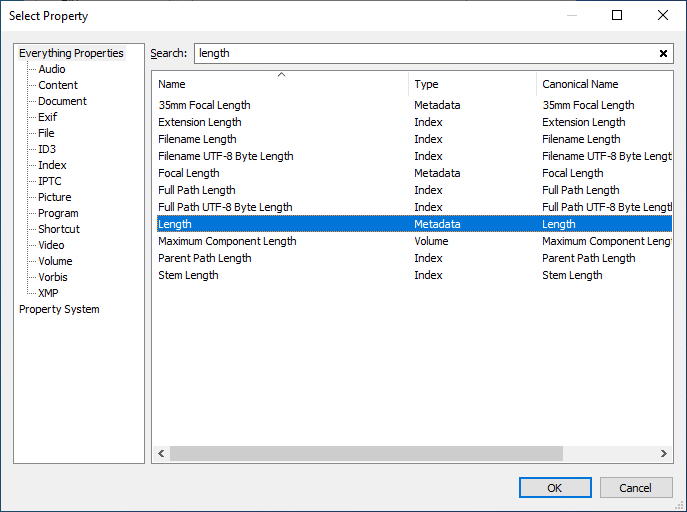
- Check Fast Sort for instant sorting.
- Click OK.
Everything will perform a quick reindex
Everything will read this property for the selected file types in the background.
Progress is shown in the status bar.
Right click this progress bar to optionally pause (and later resume) property indexing.
To index properties for a specific file type only, for example to index the Length property for mp3 files in D:\Media only:
- In Everything, from the Tools menu, click Options.
- Click the Properties tab on the left.
- Select the Length property.
- Change Include only folders to:
D:\Media
- Change Include only files to:
*.mp3
- Check Fast Sort for instant sorting.
- Click OK.
To search for properties that are not indexed, use the notindexed: search modifier.
See also
Update indexed properties
Update indexed properties
Generally you will not need to update properties, all the properties for a file are rescanned when it is modified.
To force Everything to rescan indexed properties:
- In Everything, from the Tools menu, click Options.
- Click the Indexes tab on the left.
- Click Force Rebuild.
- Click OK
Property Gathering Methods
Everything will load properties with the following methods:
(Listed in order of priority from highest to lowest).
Everything Properties will gather values from the Windows Property System.
If no Windows Property System property value is found, Everything will fall back to a built-in property handler.
The built-in property handler only support common file formats (eg: mp3/mp4/jpg).
File types known to Everything.
To gather property values with the built-in property handler instead of the Windows Property System:
- In Everything 1.5, from the Tools menu, click Options.
- Click the Advanced tab on the left.
- To the right of Show settings containing, search for:
property
- Select: property_builtin_handler_priority
- Set the value to: 1
- Click OK.
property_system_priority
property_builtin_handler_priority
Setting property values
Property values can be set with the following methods:
Windows Property System
To select a
Windows Property System property:
- In the Property Select window, click Windows Property System on the left.
- Select a property and click OK.
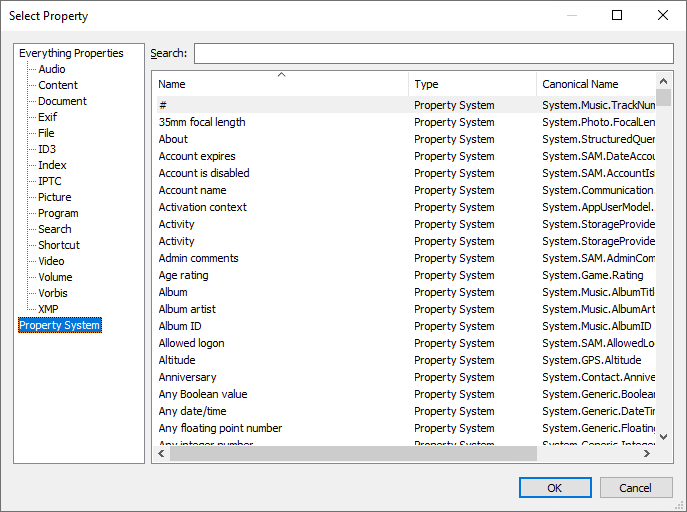
To set a property value:
- Right click a file and click Properties.
- Click the Details tab.
- Set the desired property.
- Click OK.
Windows will modify the file to save the property value
Property values for folders can be set with
Desktop.ini.
The Windows Property System will load these values.
Property values for files and folders can be set with
Summary Information.
The Windows Property System will load these values on Windows 10 and later.
Desktop.ini
To set properties for a folder (advanced):
- From the Start menu, type: notepad
- Select Notepad.
- In Notepad, copy, paste and modify the following:
[{F29F85E0-4FF9-1068-AB91-08002B27B3D9}]
Prop2 = 31,My Title
Prop3 = 31,My Subject
Prop4 = 31,My Author
Prop5 = 31,my Keywords(Tags);Another Tag;More Tags
;Star Rating: 1-99
[{64440492-4C8B-11D1-8B70-080036B11A03}]
Prop9 = 31,75
[{Property handler GUID}]
Prop<property number> = 31,My property value
Core System Properties
More Properties
- From the File menu, click Save As....
- Browse to the folder where you would like to set properties.
- Change Save as type to: All Files.
- Set the Filename to: Desktop.ini
- Click Save.
These properties are also shown in Windows Explorer.
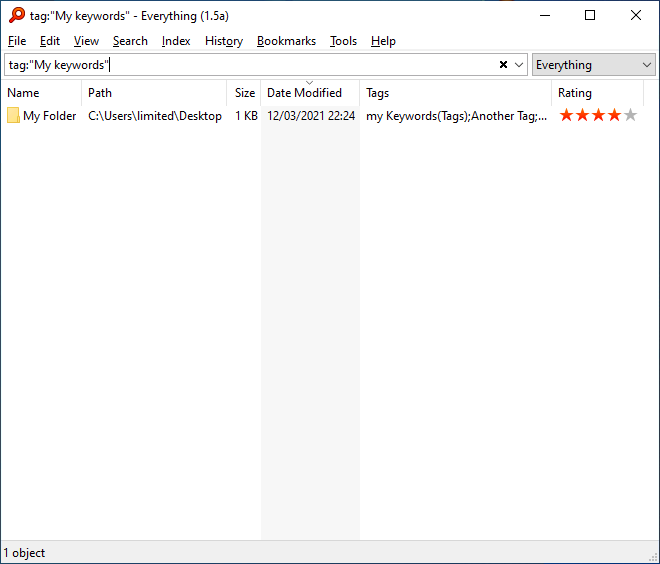 User values
To set custom values for any property (advanced):
.metadata.efu
.metadata.efu are sidecar files used to describe property values for files/folders.
For more information, please see:
.metadata.efu.
property_alternate_data_stream_wchar
property_alternate_data_stream_ansi
property_alternate_data_stream_utf8
Gather and store property values in a named alternate data stream.
For more information, please see:
property_alternate_data_stream_wchar
property_alternate_data_stream_ansi
property_alternate_data_stream_utf8
Summary Information
Gather and store property values from the \005SummaryInformation alternate data stream.
For more information, please see:
Summary Information.